In short
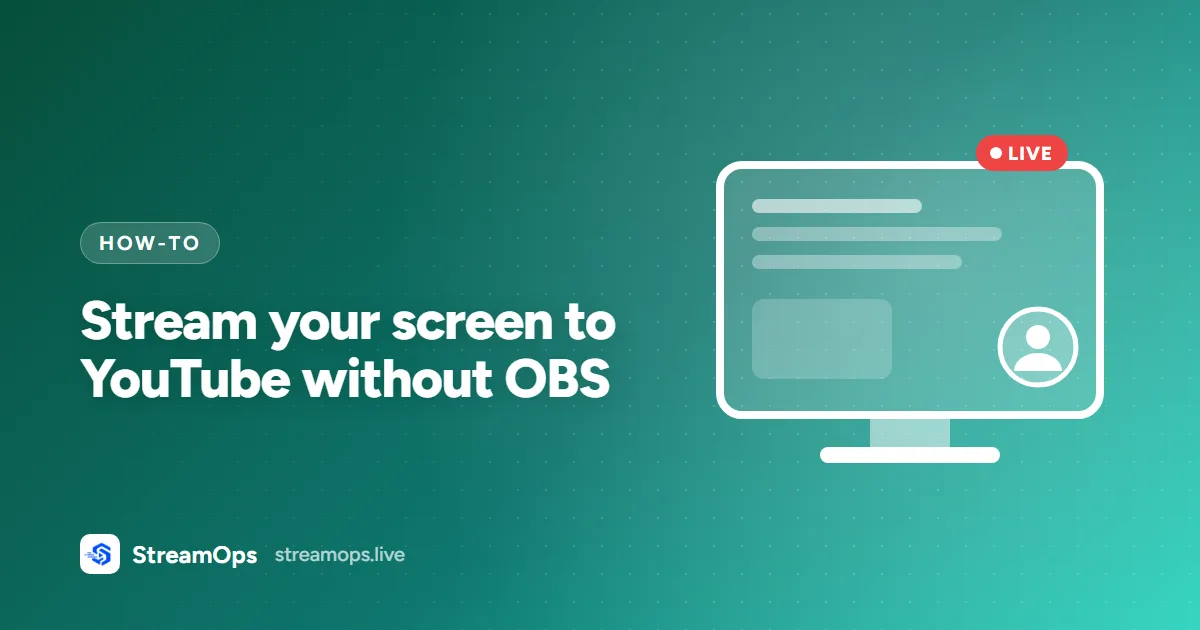
- You can stream your Windows desktop to YouTube without OBS: StreamOps captures a monitor and sends it live.
- Add a camera overlay (four corners, three sizes) and a microphone from the same form.
- Screen sharing is included on every plan, including Free. It needs a Windows PC, and it does not run on StreamOps Cloud.
- You capture a whole monitor, not a single window. Move what you want to show onto that monitor.
- Start at 1080p and 30 fps, and turn sleep off on the PC before a long broadcast.
Introduction
Plenty of live streams are just a screen: a tutorial, a coding session, a class, a software demo, a game on the desktop. For those, OBS asks you to create a scene, add a source, pick an encoder, set a bitrate and connect a stream key before a single viewer sees anything.
StreamOps has a Screen share stream type that skips most of that. You choose a monitor, set the quality, add a camera if you want one, and start. This guide walks through it, and is honest about where OBS is still the better tool.
What People Stream From Their Screen
A screen share is the simplest kind of live stream, and it covers more than you might expect. These are the jobs it does best:
- Tutorials and how-tos. Software walkthroughs, spreadsheet lessons, design demos and settings guides. Viewers follow along on their own screens, so a sharp 1080p picture matters more than a high frame rate.
- Coding sessions. Live programming, code reviews and debugging streams. Text is small, so resolution counts, and a camera in a corner keeps it personal.
- Online classes and coaching. A teacher walks through slides, a document or a whiteboard app and talks over it. Many classes run happily at 720p.
- Product demos and support. Show customers how a feature works, live, with questions arriving in the chat.
- Presentations and webinars. Put a slide deck on screen, add your camera and microphone, and stream it as a public or unlisted YouTube broadcast.
- Desktop gaming. A game running on the monitor you capture. Use 60 fps and a higher quality profile, and expect it to demand more from the PC.
What these have in common is one person, one screen and no need to switch scenes. That is the case where a full production tool is more than the job needs.
When You Don't Need OBS
| You want to… | Use |
|---|---|
| Show your screen, with or without a camera and voice | StreamOps screen share |
| Send the same screen to YouTube and another platform | StreamOps screen share |
| Switch between scenes, cameras and overlays while live | OBS |
| Add transitions, animated overlays or a green-screen effect | OBS |
| Run a stream while you are away from the PC | Not a screen share: use a playlist stream |
For the full comparison, see OBS vs StreamOps.
Before You Start
- A Windows PC. Screen sharing captures the desktop of the PC running StreamOps.
- Live streaming enabled on your YouTube channel. This is a one-time step, and a new channel can wait up to 24 hours for it.
- Enough upload speed. As a rule of thumb, you want comfortably more upload than the bitrate you stream at. Run a speed test on the PC itself.
- A camera and microphone, only if you want them in the picture.
Stream Your Screen, Step by Step
In YouTube Studio, open Go live and enable live streaming. A new channel must be verified first, and YouTube can take up to 24 hours to switch it on.
Download the Windows installer and sign in. The free plan includes screen sharing, so you do not need to pay to try it.
In Streams, click Add stream and pick Screen share as the source, instead of Video.
In YouTube Studio, go to Go live, then Stream, and copy the stream key. Paste it into the YouTube destination and give the stream a label.
Choose Primary monitor, or Choose a monitor if you have several. Start with 1920x1080 at 30 fps, and raise it only if your upload speed and PC can keep up.
Switch on the camera overlay, choose your camera, then pick a corner and a size. You can also choose a rectangle or rounded shape, and turn the border on or off.
Turn on the microphone and pick the device. Turn on desktop audio too if your PC offers a device that can record its own sound, and use the balance slider to set the mix.
Pick Low (1500 kbps), Standard (2500), HD (4500) or Ultra (8000). Standard suits most tutorials. Then click Create stream.
Open the stream and start it, then watch it come up in YouTube Studio. Stop it from the same page when you are done.
Check the preview first
Resolution & Frame Rate
You can choose from 1280x720, 1600x900, 1920x1080, 2560x1440 and 3840x2160, at 15, 24, 30 or 60 frames per second. More pixels and more frames mean more bitrate, and so more upload speed and PC power.
| Content | Good starting point |
|---|---|
| Tutorials, slides, coding, classes | 1920x1080 at 30 fps |
| Slower connection or older PC | 1280x720 at 30 fps |
| Static content, like a long lecture | 1280x720 at 15 or 24 fps |
| Fast motion on screen, like games | 1920x1080 at 60 fps, if your PC and upload can carry it |
Text-heavy screens look sharper at 1080p than at a lower resolution, even at 30 fps. If the stream buffers, lower the frame rate before you lower the resolution. For bitrate numbers, see best FFmpeg settings for YouTube Live.
Adding Your Camera
Switch on the camera overlay and choose your camera. You then decide where it sits and how big it is:
- Position: top left, top right, bottom left or bottom right.
- Size: small, medium or large.
- Shape and border: rectangle or rounded corners, with an optional border.
Put the camera in the corner where your screen has the least happening, often the bottom right for slides and the top right for code. There is no scene editor, so the camera is always a picture-in-picture over the screen.
Audio: Microphone & Desktop Sound
There are two audio sources, and you can use either or both:
- Microphone. Switch it on and pick the device.
- Desktop audio. The sound your PC plays: video clips, app sounds, music. This needs an audio device that can record the PC's own output, such as Stereo Mix. StreamOps shows which device it will use. If none is found, the switch is disabled.
With both on, a balance slider sets how loud the desktop sound is compared with your voice. Speak a few sentences and play a sound before you go live, to check that neither drowns out the other.
No Stereo Mix?
How Much Upload Speed You Need
The most common reason a screen share stutters is not the PC but the upload connection. The quality profile you choose sets the video bitrate StreamOps sends, and your upload speed has to carry it with room to spare:
| Quality profile | Video bitrate | Comfortable upload speed |
|---|---|---|
| Low | 1500 kbps (1.5 Mbps) | About 3 Mbps |
| Standard | 2500 kbps (2.5 Mbps) | About 4 to 5 Mbps |
| HD | 4500 kbps (4.5 Mbps) | About 7 to 8 Mbps |
| Ultra | 8000 kbps (8 Mbps) | About 12 to 14 Mbps |
The last column is a rule of thumb, not a guarantee: roughly one and a half times the bitrate, because audio adds a little and your connection never delivers its full advertised speed all the time. Run a speed test on the streaming PC and look at the upload figure, not the download.
- Every destination is another upload. Sending one screen to YouTube and Twitch at the same time uses twice the bitrate of sending to one.
- Other devices share the line. Someone uploading a video or backing up photos on the same network will eat into your headroom.
- Wired beats Wi-Fi. An ethernet cable avoids the brief drops that Wi-Fi causes, and every drop interrupts a live stream.
StreamOps also has a stream capacity panel where you can enter your upload speed, so it can show how much of it your streams use. For a deeper look at bitrate, see best FFmpeg settings for YouTube Live.
Prepare Your Screen Before Going Live
A screen share shows everything on the captured monitor, exactly as it is. A few minutes of preparation separates a clean stream from an awkward one:
- Turn on Do Not Disturb. In Windows, use Focus or Do Not Disturb so message and email pop-ups do not appear on stream.
- Close what you do not need. Email, chat apps, password managers and banking tabs should be shut, not just minimised.
- Use a clean desktop. Hide desktop icons and file names you would not want viewers to read, and pick a plain wallpaper.
- Make text readable. Zoom your browser or editor in a step or two, increase the font size, and use a high-contrast theme. Small text turns to mush at a lower stream bitrate.
- Put the right content on the right monitor. Keep the window you present on the monitor you capture, and your notes, chat and viewer count on the other one.
- Check your sound. Speak for a few seconds, play a sound from your PC, and look at the balance. Silence is worse than a low picture.
- Do a private test. Set the YouTube broadcast to Private or Unlisted, run it for five minutes, and watch it back before the real session.
Your stream key is a password
One Screen, Several Platforms
A screen-share stream uses the same pipeline as every other StreamOps stream. Add YouTube, Twitch, Kick or any RTMP destination, and the capture goes out to all of them. If a stream crashes, it is restarted automatically. See multistreaming to YouTube, Twitch and Kick for how that works.
Troubleshooting
| Problem | What to check |
|---|---|
| No monitors listed in the form | StreamOps must be running on the Windows PC you want to share. If the dashboard shows the runner offline, start it first, then refresh the device list in the form. |
| No cameras or microphones listed | Plug the device in and refresh the list. A camera that another app is already using, such as a video-call app, may not be available until you close that app. |
| Desktop audio switch is disabled | StreamOps found no device that can record the PC's own sound. Enable Stereo Mix in Windows sound settings if your driver offers it, or stream with the microphone only. |
| The stream buffers or the picture freezes | Lower the frame rate first, then the resolution or quality profile, and check your upload speed. Switch from Wi-Fi to a cable if you can. |
| Viewers see the wrong monitor | Switch between Primary monitor and Choose a monitor, and confirm which display is which in Windows display settings. |
| YouTube shows no signal | Check that you pasted the stream key from the Stream tab in YouTube Studio, and that live streaming is enabled on the channel. |
| The stream stopped after a restart | Screen shares are not resumed automatically. Start the stream again once the PC is back. |
If a stream keeps ending on its own, the causes are usually the same as for any other stream: why your 24/7 stream keeps ending covers them, and fixing YouTube's "poor connection" warning covers the warning you may see in Studio.
What It Can't Do
Better to know before you plan a show around it:
- Windows only. It captures the desktop of the PC running StreamOps.
- No single-window capture. You share a whole monitor: the primary one or one you choose. A multi-monitor setup is not stitched into one canvas.
- No scenes, transitions or overlay editor. The camera is a picture-in-picture over the screen.
- Not available on StreamOps Cloud, because a cloud server has no screen. Cloud streams uploaded videos.
- Not resumed after a restart. Start it again yourself once the PC is back.
If you need to stream while you are away, a playlist stream is the right tool: see streaming without OBS open or your PC sleeping.
Common Mistakes
Frequently Asked Questions
Can I stream my screen to YouTube without OBS?
Yes. StreamOps captures your Windows desktop directly and sends it to YouTube, with an optional camera overlay and microphone. You set it up from a web dashboard form instead of building scenes and sources.
Is screen sharing free in StreamOps?
Yes. Screen sharing is included on every plan, including Free.
Does it work on Mac or Linux?
No. Screen sharing captures the desktop of the Windows PC running StreamOps, so it is Windows only for now.
Can I share just one window instead of the whole screen?
Not yet. You can capture your primary monitor or a monitor you choose. Single-window capture is not available, so move the window you want to show to the monitor you are sharing.
Can I add a webcam?
Yes. Turn on the camera overlay, then choose its corner (top or bottom, left or right), its size (small, medium or large), its shape (rectangle or rounded) and whether it has a border.
Can I include sound from my PC?
If your PC has a device that can record its own output, such as Stereo Mix, you can include desktop audio and mix it with your microphone using a balance slider. If StreamOps cannot find one, the desktop audio switch stays disabled.
What resolution and frame rate can I stream?
Resolutions run from 1280x720 up to 3840x2160, and frame rates are 15, 24, 30 or 60 fps. Whether your PC and upload speed can carry the higher options is a separate question, so test before a real broadcast.
Can I screen share from StreamOps Cloud?
No. A cloud server has no screen or camera to capture. Screen sharing runs on your own Windows PC. StreamOps Cloud streams uploaded videos only.
Can I stream my screen to YouTube and Twitch at once?
Yes. A screen-share stream goes through the same pipeline as other streams, so you can add several destinations and send the one capture to all of them.
How much upload speed do I need to stream my screen?
Aim for about one and a half times the bitrate of the quality profile you choose. Standard uses 2500 kbps, so about 4 to 5 Mbps of upload is comfortable. Each extra platform you send to needs its own share of upload.
Why does my screen share look blurry?
Text-heavy screens need a decent resolution and bitrate. Use 1920x1080, choose the Standard or HD profile, zoom your app so text is larger, and avoid fast scrolling. Dropping the frame rate to 24 or 30 gives each frame more bitrate.
Do I need a powerful PC to stream my screen?
Not for a normal tutorial or class. Capturing a desktop at 1080p and 30 fps is light work for most modern PCs. Gaming on the same machine at 60 fps is the heavy case, because the game and the stream compete for the same hardware.
Will viewers see my notifications?
Yes, if they appear on the monitor you are capturing. Turn on Do Not Disturb in Windows, or keep chat and email on a second monitor that you are not sharing.
Can I do a test run before going public?
Yes. Set the YouTube broadcast to Private or Unlisted, stream for a few minutes, and watch it back to check the picture, the sound and the camera position before the real session.
Is OBS still better for some things?
Yes. If you need scenes, transitions, multiple sources or an overlay editor while you present, OBS is built for that. A StreamOps screen share is for when you want your screen, a camera and a microphone live without that setup.
Conclusion
For a tutorial, a class or a demo, you do not need a full production tool. Pick a monitor, set 1080p at 30 fps, add a camera and microphone if you want them, check the preview, and go live. If you later need scenes and switching, OBS is still there for that.