Features
Everything in the app, nothing left out.
From one-click stream control to live analytics and automated scheduling — everything StreamOps does, listed clearly, with no feature held back for a screenshot. Run it on your own PC, or let us run it for you with StreamOps Cloud.
StreamOps Cloud
No PC to keep switched on — we run your streams on our servers, with every Pro feature included.
Nothing to Install
Choose a Cloud plan and your own cloud server is set up for you within minutes. The same streaming engine as the desktop app, running 24/7 on our servers.
No download · Always on · Same engine
Upload or Import Your Videos
Upload from the browser, or paste a Google Drive or Dropbox link. Each video is processed once for smooth streaming at the quality you pick, then streams without re-encoding.
Browser upload · Google Drive · Dropbox · Processed once
Priced by Streams
Plans from 1 to 20 concurrent streams, each with 25 GB of video storage per stream. Ultra quality from Cloud 10. Need more? A custom Business plan.
1–20 streams · 25 GB per stream · Ultra from Cloud 10
Fair When Things Change
Cancel any time and keep streaming to the end of the period you paid for. If a payment fails, streaming continues for 3 days, and your videos are kept for 7 days after that.
Cancel anytime · 3-day grace · 7 days to come back
Dashboard
One screen for everything that matters — live streams, server health, and what's coming up next.
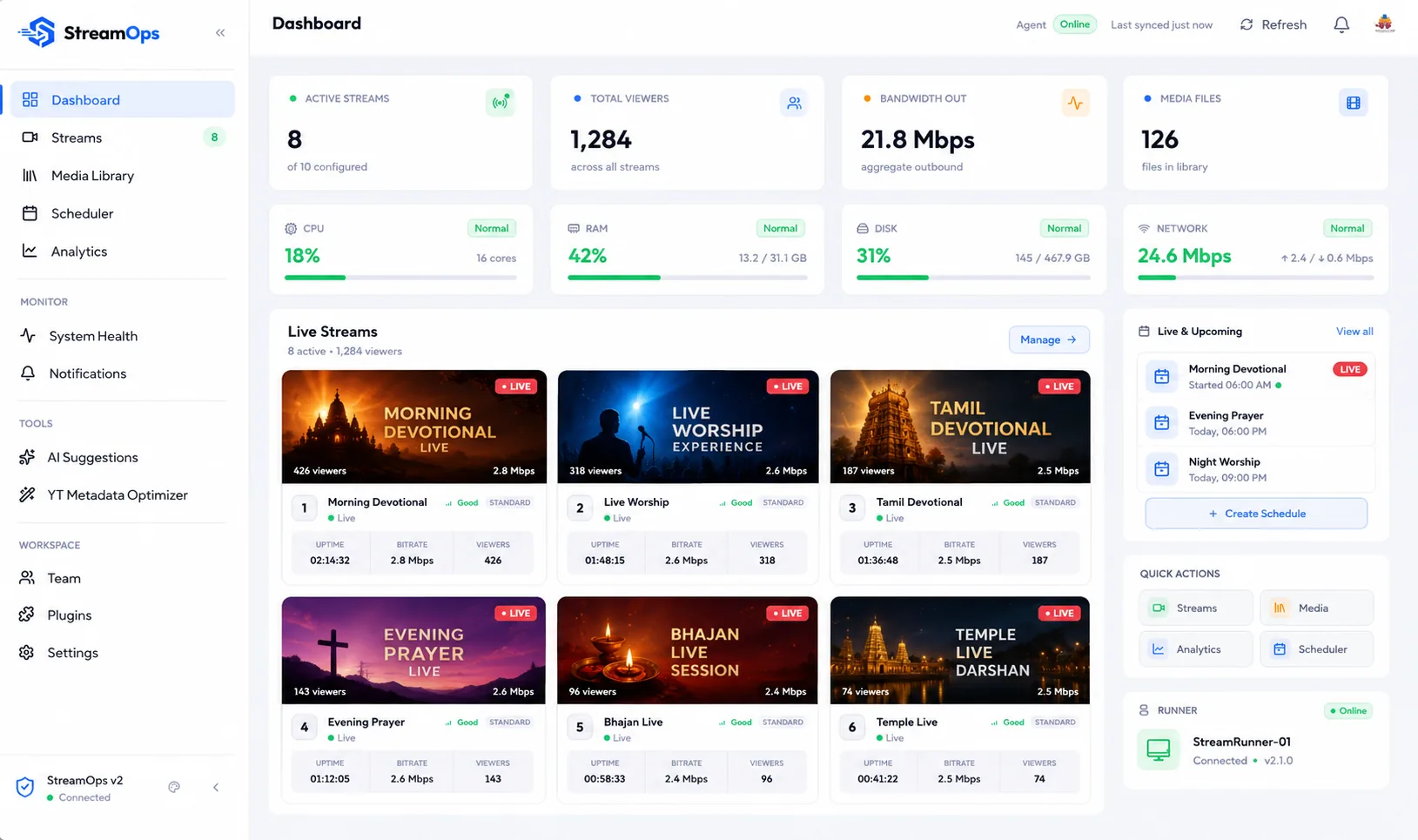
Live Operations Overview
See everything at once — active streams, total viewers, bandwidth, and media count, all refreshing automatically. No need to dig through pages to know what's going on.
Active streams · Live viewers · Bandwidth · Media count
Server Health at a Glance
CPU, RAM, disk, and network usage shown in real time with colour-coded indicators. Spot a struggling server before it takes a stream down.
CPU · RAM · Disk · Network
Live Stream Cards
Each running stream shows its thumbnail, uptime, viewer count, and current bitrate. Hover any card to start, stop, or restart without leaving the dashboard.
Thumbnails · Viewer count · Uptime · Quick controls
Upcoming Schedules & Runner Status
A sidebar shows your next scheduled jobs at a glance — video, stream, and time remaining. StreamOps's status, version, and uptime are always visible in the same panel.
Next job preview · Runner status · Time remaining
Stream Control
Start, stop, and configure every stream from one place, with search and detail views built in.
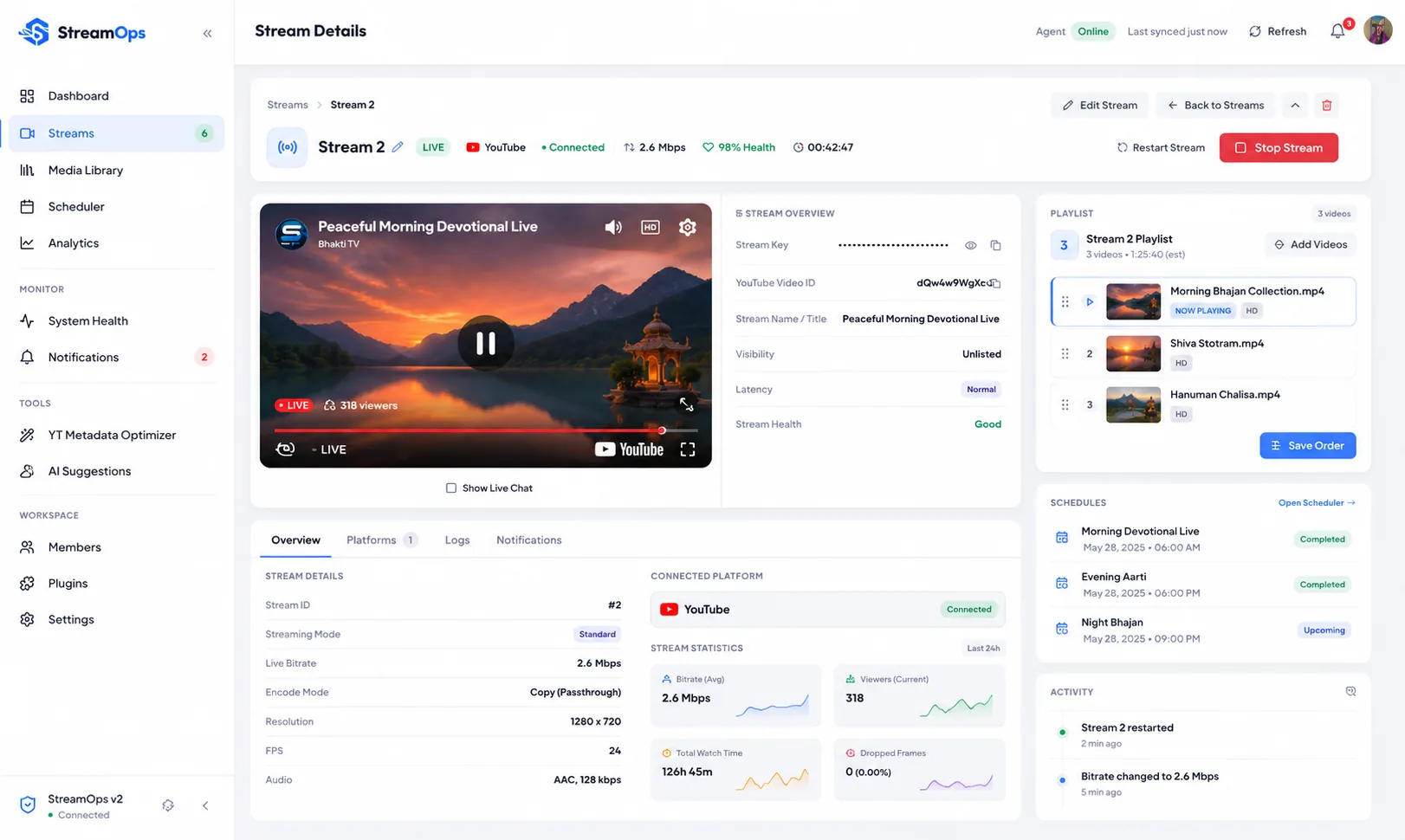
One-click Stream Controls
Start, stop, or restart any stream with a single click — individually or all at once. Each action reflects instantly across the dashboard.
Start · Stop · Restart · Restart All
Stream Configuration
Add, edit, or remove streams from a simple form. Set the stream name, destination URL, stream key, playlist, and streaming mode. Everything saved and ready on the next run.
Add / Edit / Delete · Stream key · Streaming mode
Grid & List Views with Search
Switch between a visual grid and a compact list. Search by name to filter instantly. Click any stream to open a detail panel for inline playlist editing.
Grid view · List view · Search · Detail panel
Multi-Destination Streaming
Send one stream to YouTube, Twitch, and any custom RTMP endpoint at the same time. StreamOps encodes once and fans the result out to every destination, so adding a platform costs almost no extra CPU — and if one destination drops, the others keep running.
Encode once, send everywhere · YouTube, Twitch, Facebook, Kick + custom RTMP · Per-destination toggle · One failure won't stop the rest
Automatic Crash Recovery
The runner watches every stream for a dead FFmpeg process or a silent, hung connection — then restarts it on its own with exponential backoff, so one bad reconnect doesn't hammer your destination.
Stall detection · Exponential backoff · No manual restart
YouTube Broadcast Auto-Recovery
If YouTube ends a broadcast while your stream is still running, StreamOps can create a fresh broadcast and carry on, and can publish it again once the stream recovers. Both options are off by default and you switch them on per destination.
Recreate a dead broadcast · Auto-publish on recovery · Opt-in per destination
Stream Capacity Check
Enter your upload bandwidth and StreamOps recommends how many concurrent streams you can safely run at your chosen quality — before you find out the hard way mid-broadcast.
Bandwidth-based estimate · Per quality tier · Available on every plan
Live Screen Sharing
Stream your live desktop instead of a video loop — with an optional camera overlay, through the same reliable pipeline as every other stream.
Desktop & Monitor Capture
Capture your primary display or choose a specific monitor on a multi-monitor setup. Pick a resolution and frame rate up to 4K/60fps — no third-party capture software needed.
Primary monitor · Choose a monitor · Up to 4K / 60fps
Camera Overlay
Add a webcam picture-in-picture on top of your screen capture. Choose its corner and size, and bring in microphone audio alongside it.
4 corner positions · 3 sizes · Microphone audio
Live Composited Preview
See exactly what's being broadcast — a thumbnail of the actual composited output, camera overlay included, refreshes automatically while the stream is live.
Live thumbnail · Auto-refresh · No guesswork
Same Reliability as Playlist Streams
A Screen Sharing stream runs through the identical FFmpeg pipeline as a video-loop stream — automatic crash recovery, multi-destination fan-out, and quality tiers all apply.
Auto crash recovery · Multi-destination · Quality tiers
Video Designer
Get your videos stream-ready without a separate editor — trim, join and compress on a timeline, right next to your library.
Timeline Editing
Drag the edges of a clip to trim it, cut at the playhead, reorder, repeat or remove clips. A still-frame preview follows whatever you move, so you see the exact frame you are cutting to.
Drag to trim · Cut at playhead · Reorder & repeat · Undo / redo
Join Clips into One Video
Put up to 20 clips in a row, repeating any of them, and export one finished MP4. Useful for building a loop of the right length without opening an editor.
Up to 20 clips · Repeat clips · One MP4 out
Compress & Convert
Pick a quality, a resolution or a target file size, and StreamOps shows the estimated size and time before you start. Files that already fit are not re-encoded, so fast cuts finish quickly.
Estimated size & time · Target file size · Fast cut or exact cut
Saved to Your Library
The finished video lands in your media library and is ready to drop into a playlist. Available on Creator and above.
MP4 (H.264 + AAC) · Back into the library · Creator plan and up
Media & Playlists
Your video library, fully browsable and searchable, with playlists built stream-by-stream.
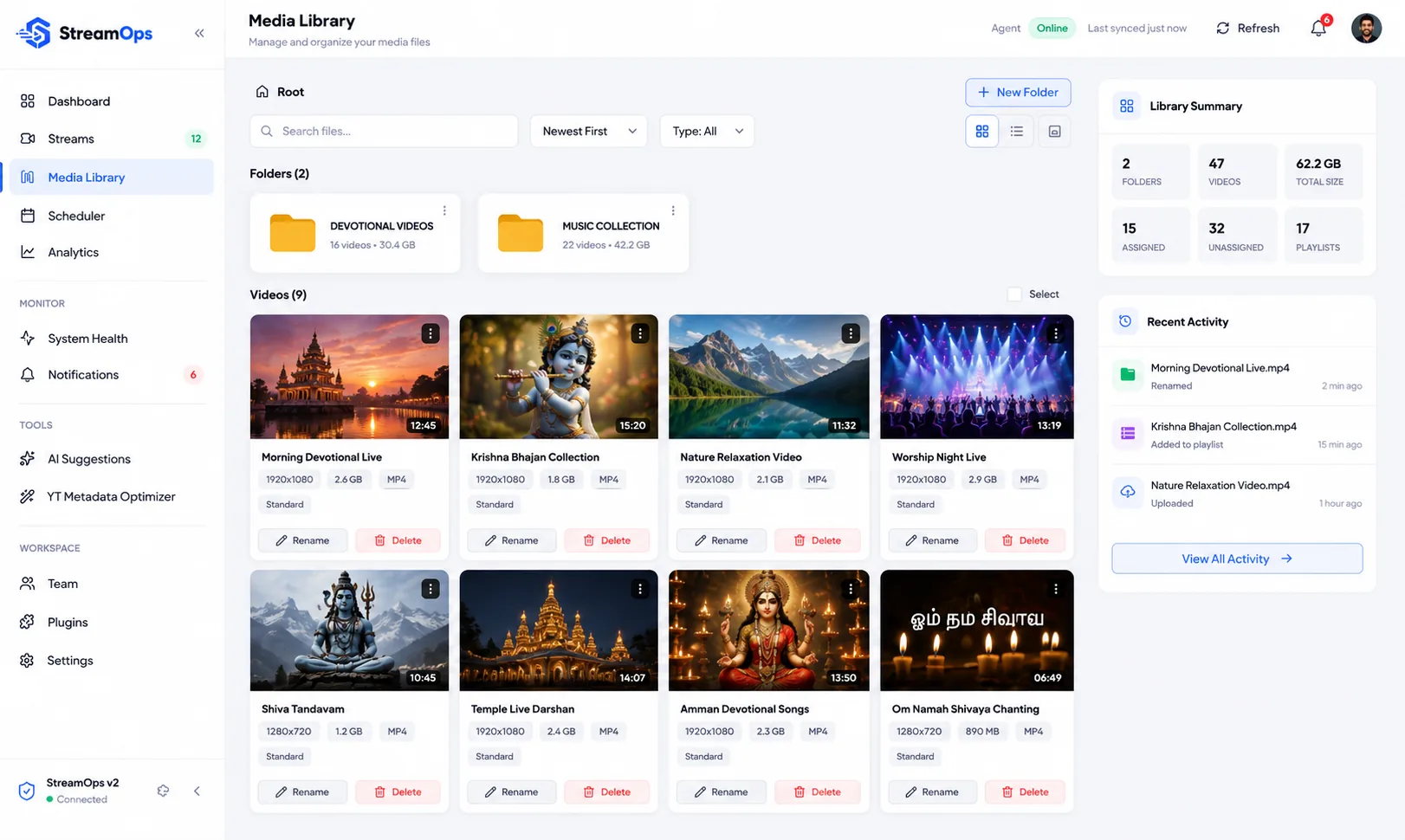
Video Library
Your video folder is reflected in the Media page — browse all files with name, size, and date. Rename or delete files without touching the server.
Browse files · Rename · Delete · File details
Sort, Search & Browse
Search by filename and sort six ways — by name, date, or file size. Page through your library 12, 24, or 48 videos at a time.
Filename search · 6 sort options · Adjustable page size
Keyboard Shortcuts
Navigate the media library entirely by keyboard. Search, switch views, and jump between pages without touching the mouse. A built-in help overlay shows all shortcuts.
Quick search · View toggle · Page navigation
Per-stream Playlists
Build a playlist for each stream. Add videos, remove them, and drag to reorder — the list updates immediately so you always see the right order before you go live.
Add / Remove · Drag to reorder · Per-stream
Automatic Video Normalization
The single biggest cause of a 24/7 loop dying is a playlist of videos that don't match — different codecs, resolutions, or frame rates. StreamOps probes every file, compares it against your streaming profile, and pre-converts only the ones that don't conform.
Automatic probing · Codec & resolution match · Converts only what needs it · Queued in the background
Scheduling
Automate exactly when a stream goes live and comes down — including YouTube broadcasts.
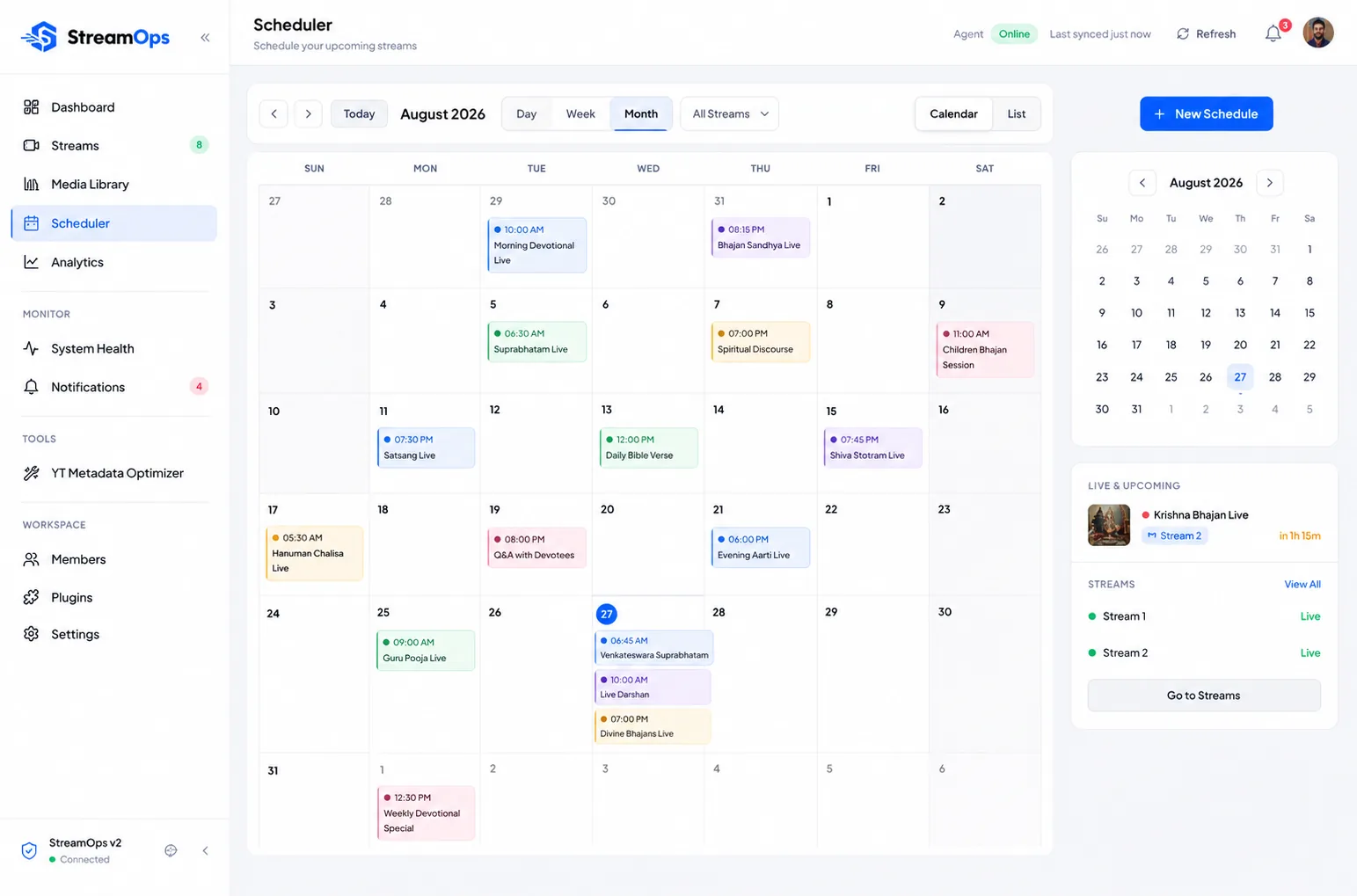
Automated Stream Scheduling
Set a stream to start and stop at any date and time. Duplicate existing schedules to save time. Jobs run automatically — even when the dashboard is closed.
Start & stop times · Duplicate · Run Now · Runs unattended
Filters & Calendar View
Filter schedules by status, stream, or video name. A mini calendar highlights days with scheduled jobs so you can spot gaps and overlaps at a glance.
Status filter · Stream filter · Calendar view · Video search
Live Countdown to Next Job
The scheduler sidebar shows exactly how long until your next stream goes live — video, target stream, and a live countdown. Running jobs show "Live Now" instead.
Countdown timer · Live Now indicator · Next job details
YouTube Broadcast Scheduling
Create YouTube live events directly from StreamOps when a YouTube account is connected. No need to set up broadcasts manually on YouTube Studio.
Create broadcasts · Auto-sync metadata · YouTube connected
Chat Automations
Keep your live chat active while the stream runs unattended.
YouTube Chat Templates
Choose from ready-made templates, such as a subscribe reminder, and StreamOps posts them to your live chat on a schedule you set. Posting is capped at 20 messages per 24 hours so your channel is not flagged as spam.
7 templates · 20 posts per 24 hours · Creator plan and up
Analytics
YouTube performance and stream health, side by side, without leaving the dashboard.
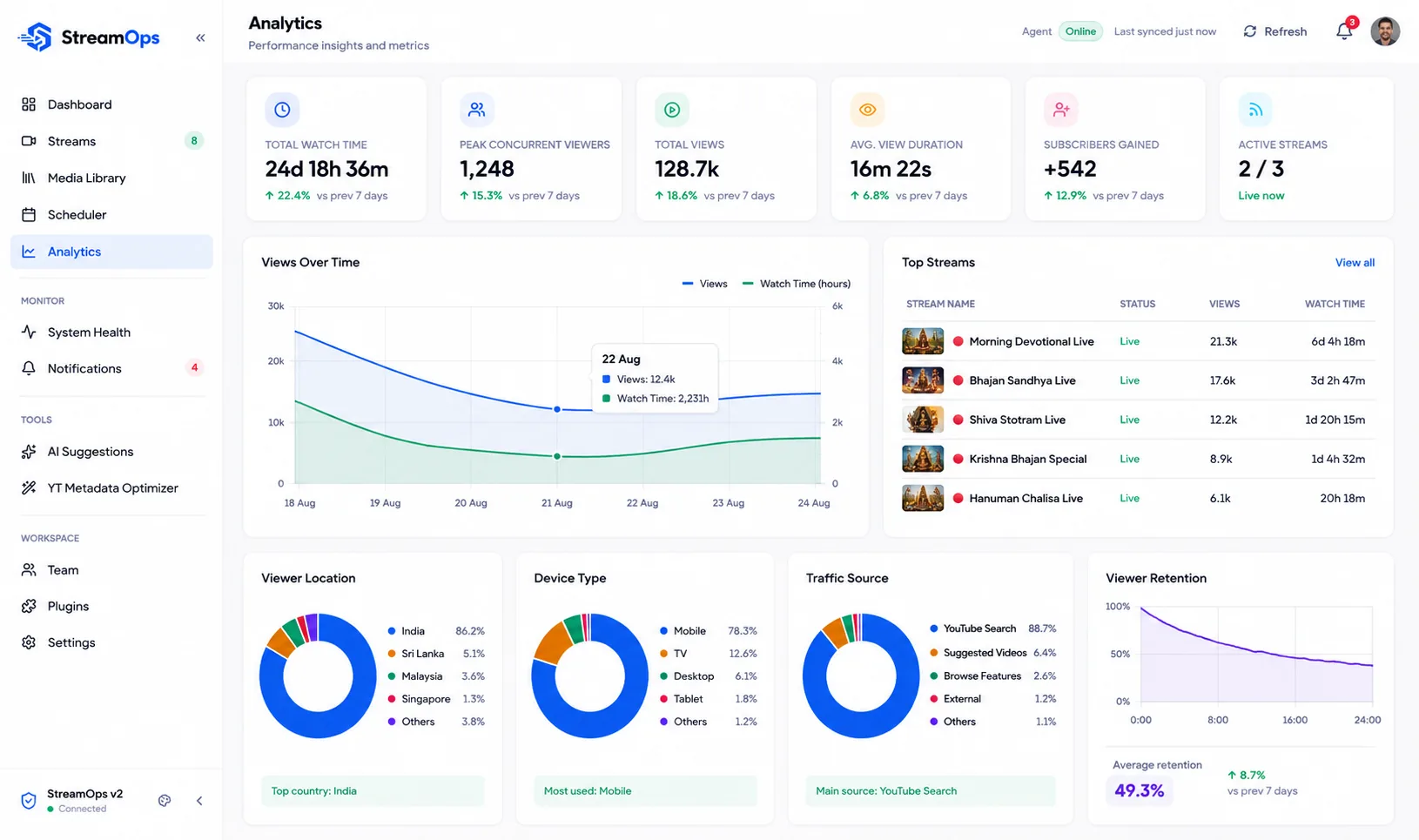
YouTube Channel Stats
Connect your YouTube account to see subscriber count, total channel views, and video count — all in the StreamOps dashboard, no need to open YouTube Studio.
Subscribers · Total views · Video count
Per-stream Performance
Pick any stream and see live viewers, current bitrate, peak viewers, bandwidth usage, and 24-hour trend charts for both viewership and stream quality.
Live viewers · Bitrate · 24h viewer chart · 24h bitrate chart
Stream Comparison
A side-by-side table compares all your streams with health scores and status badges — making it easy to spot which channels need attention.
All streams · Health score · Status badges
AI Tools
Let AI rewrite your YouTube title, description, and tags — then apply the result with one click.
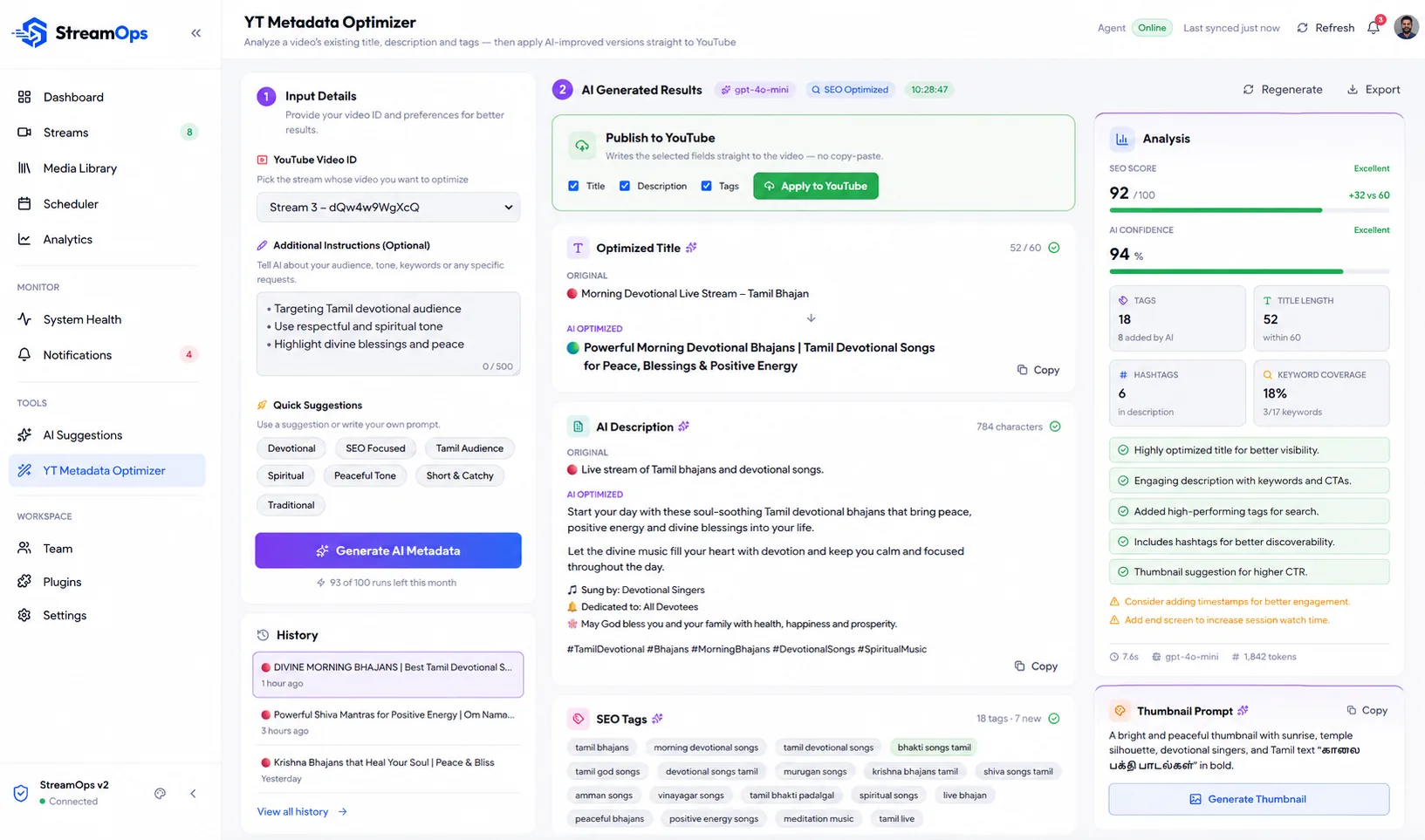
AI Metadata Optimizer
Pick any video from a connected stream and StreamOps rewrites the title, description, and tags for search — see the original and the AI-optimized version side by side before anything changes.
Before / after diff · SEO-focused rewrite · One-click apply to YouTube
Measured SEO Score & Confidence
Every result ships with an SEO score before and after, an AI confidence rating, and keyword coverage — plus a plain-language list of what changed and why, so you're not trusting new copy blindly.
SEO score · Confidence rating · Keyword coverage
Thumbnail Direction & Prompts
Get a ready-to-paste image prompt for Midjourney, DALL·E, Firefly, or Gemini — plus suggested overlay text — generated from the same pass as your metadata.
Ready-to-paste prompt · Overlay text · Works with any generator
Custom Direction & Run History
Steer results with quick style presets — SEO focused, viral, educational, and more — or write your own instructions. Every past run is saved, so you can revisit it without spending another AI credit.
Style presets · Custom prompt · Free history review
AI Suggestions & Copilot
An on-demand copilot that reviews your streams, schedule, and media library — then tells you what to do next.
Suggestion Inbox
AI reviews your setup and proposes concrete actions — filling a scheduling gap, reordering a playlist, rewriting metadata — that you approve or reject before anything changes.
Approve / Reject · Scheduler agent · Playlist agent
Ask AI
A knowledge-base chat that answers questions about your own streams and setup — grounded in your real data, not a generic chatbot.
Grounded in your data · Chat interface
Daily Briefings
Generate an on-demand summary of stream health, viewer trends, and anything that needs your attention — one click, no digging through pages.
One-click brief · Health + trend summary
MCP Server for AI Assistants
Connect Claude, ChatGPT or Gemini to your account so they can read your streams, playlists, schedules, analytics and channel data. Access is read-only: an assistant cannot start, stop or change anything.
Read-only · API key or sign-in · Pro plan
Monitoring & Logs
Real-time visibility into every service and stream, down to the raw log line.
Service Status Table
See the health of every internal service — response times and uptime percentages shown in a clear table. Reload or restart the runner directly from this page if anything looks off.
Service status · Response time · Uptime % · Quick restart
Stream Logs
View the raw output for any stream. Pick a stream, choose how many lines to load, and scroll through the log. Clear it when you're done.
Per-stream logs · Adjustable history · Auto-scroll · Clear logs
Real-time Runner Logs
Runner logs appear live as events happen — no refresh needed. See startup messages, job execution, and system events as they stream in.
Live updates · Runner events · No refresh needed
Alerts
Errors and warnings surface immediately, with simple tools to triage and clear them.
Three-level Alerts
Errors, warnings, and info events surface with distinct colours and icons. Counters at the top show how many are unread so nothing slips through.
Errors · Warnings · Info · Unread count
Filter, Acknowledge & Dismiss
Filter alerts by type or status. Acknowledge one or all at once. Dismiss any alert — with a short window to undo if you change your mind.
Filter by type · Acknowledge All · Dismiss with undo
Settings
Connect YouTube, point at your video folder, and lock things down — in a few clicks.
YouTube Account Connect
Link or unlink a YouTube account in a couple of clicks via Google sign-in. Once connected, analytics and broadcast scheduling become available automatically.
Google sign-in · One-click connect · Easy disconnect
Video Folder Setup
Tell StreamOps where your videos live. It checks the path, confirms the folder is accessible, and immediately reflects it in the Media page.
Folder path · Access check · Instant sync
Secure by Default
StreamOps only activates on licensed machines — so your account can't be used by anyone else. Session tokens are stored securely and never exposed in the browser.
License protection · Secure sessions · Authorised machines only
Two-factor Sign-in
Add an authenticator app to your account for a second sign-in step. If you change computers, you can move your licence to the new one yourself, within a monthly limit.
Authenticator app (TOTP) · Self-serve machine transfer
Theme & Runner Controls
Switch between light and dark mode. Reload or fully restart StreamOps from the Settings page — no command line needed.
Light / Dark mode · Reload runner · No command line
Team Collaboration
Invite your team, assign roles, and manage who can do what — without sharing one login.
Invite Teammates
Send an email invite with an assigned role. Pending invites show up immediately and can be revoked any time before they're accepted.
Email invite · Pending invites · Revoke anytime
Owner, Editor & Viewer Roles
Control who can change stream configuration versus who can only look. Managing roles and removing members stays available even if your plan lapses, so an owner is never locked out of their own team.
3 roles · Change anytime
Server-side Enforcement
Every action is re-authorized on the backend — the dashboard only hides what would fail, so role checks can't be bypassed from the browser.
Server-verified · No client-side trust
Ready to see it in action?
Download StreamOps, connect your dashboard, and be live in minutes.