In short
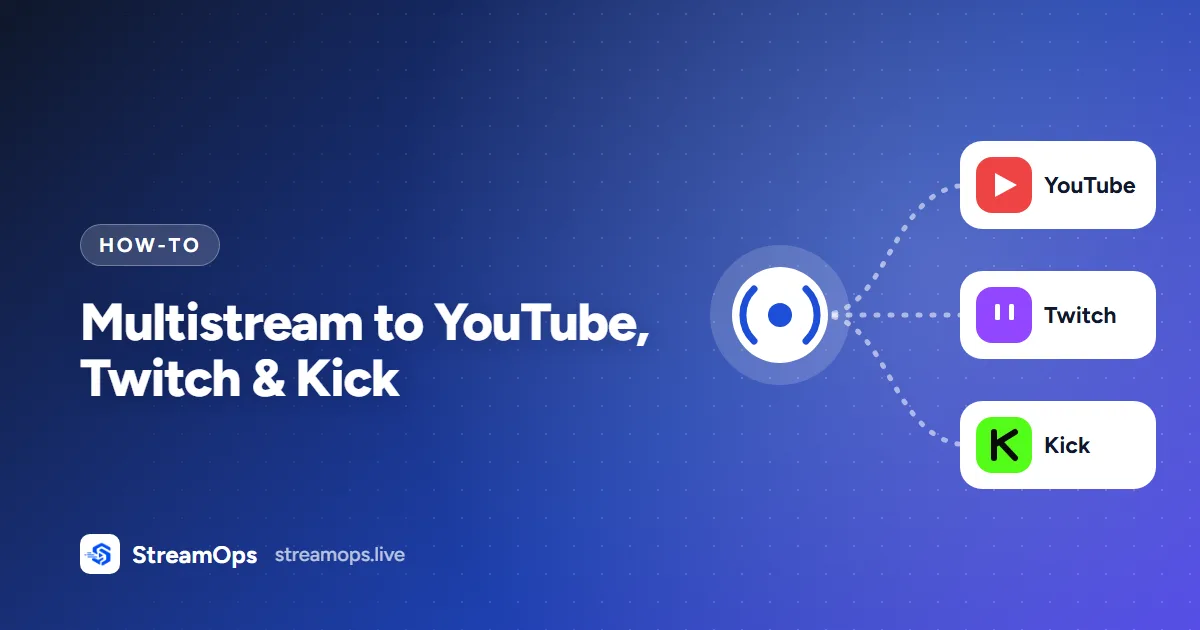
- Multistreaming sends one live stream to several platforms at once — for example YouTube, Twitch and Kick.
- Encode once and send a copy to each platform. CPU load stays flat; upload bandwidth multiplies.
- Your upload must cover every copy plus about 30% headroom: three platforms at 4.5 Mbps need roughly 18 Mbps.
- The shared encode must suit the strictest platform. With Twitch in the mix, stay at about 6 Mbps or below.
- YouTube and Twitch need only a stream key; Kick also needs the server URL from its dashboard.
Introduction
Multistreaming (or simulcasting) means sending the same live stream to several platforms at once. For a 24/7 channel it is an easy win: the content already exists, and every extra platform is another audience finding it.
The catch is that each platform needs its own copy of the stream, and that has consequences for your internet connection and your settings. This guide covers how it works, what you need, and how to set it up.
What Is Multistreaming?
Multistreaming is broadcasting one live video to two or more streaming platforms at the same time. Viewers on each platform see the same picture and sound, but each platform has its own chat, viewer count, title and recommendations.
It is also called simulcasting or restreaming. "Restreaming" usually refers to cloud services that receive one stream and forward it; "multistreaming" is the general term.
Why Multistream?
- More reach for the same work. Each platform recommends live content to a different audience.
- Less platform risk. If one platform changes its rules or has an outage, your stream is still live elsewhere.
- Find where your audience is. Running on several platforms shows you which one your content does best on.
- Almost free for 24/7 content. A pre-recorded stream costs no extra effort to send to another platform.
How Multistreaming Works
The expensive part of streaming is encoding: compressing the video into a live stream. The cheap part is sending it. So the efficient way to multistream is to encode once and send the result to every platform.
StreamOps works this way. The video is encoded once, and a copy of the result goes to each platform you add. If one platform has a problem, the others keep streaming.
Direct vs Cloud Restreaming
| Direct from your machine | Cloud restreaming service | |
|---|---|---|
| How it works | Your machine sends a copy to each platform | You send one copy; the service forwards it |
| Upload needed | One copy per platform | One copy total |
| Monthly cost | None beyond your software | A subscription, often priced per destination |
| Points of failure | Your machine and connection | Your machine, connection and the service |
| Best for | Connections with upload to spare | Slow upload connections |
For most 24/7 setups on a decent connection, direct is simpler and cheaper. If your upload is tight, a cloud service or a server in a data centre is the way around it.
The Upload Maths
Encoding happens once, but uploading happens once per platform. Your upload needs to cover the total, with headroom:
| Destinations | At 2.5 Mbps (Standard) | At 4.5 Mbps (HD) |
|---|---|---|
| 1 platform | ~2.6 Mbps | ~4.6 Mbps |
| 2 platforms | ~5.3 Mbps | ~9.3 Mbps |
| 3 platforms | ~8 Mbps | ~14 Mbps |
| 4 platforms | ~10.5 Mbps | ~18.5 Mbps |
Figures include about 128 kbps of audio each. Aim for sustained upload at least 30% above the total — run a speed test at the busiest time of day, not at midnight.
Hardware Requirements
Because the encode happens once, multistreaming needs about the same processing power as a single stream. What matters is the encode itself:
- A modern 4-core CPU can encode one 1080p30 stream in software.
- An NVIDIA, AMD or Intel graphics chip with a hardware encoder takes the work off the CPU almost entirely. StreamOps detects and uses these automatically.
- If your files are already prepared at the right settings, StreamOps can stream them with very little CPU at all.
Platform Differences
| Platform | What you paste in | Bitrate to aim for |
|---|---|---|
| YouTube | Stream key only | Up to ~9 Mbps at 1080p30 |
| Twitch | Stream key only | Up to ~6 Mbps |
| Kick | Server URL + stream key | Up to ~8 Mbps |
| Facebook Live | Server URL + stream key | Up to ~6 Mbps |
| Custom RTMP / RTMPS | Server URL + stream key | Whatever the server accepts |
Platforms change their recommendations from time to time, so check each one's current guidance. Because there is one shared encode, the lowest limit wins. With Twitch in the mix, keep the video at about 6 Mbps or below — the HD tier (4.5 Mbps) fits comfortably.
Where to Find Each Stream Key
| Platform | Where to look |
|---|---|
| YouTube | YouTube Studio → Create → Go live → Stream tab → Stream key |
| Twitch | Creator Dashboard → Settings → Stream → Primary Stream Key |
| Kick | Creator dashboard → Settings → Stream key (shows the server URL and the key) |
| Live Producer → Streaming software → Server URL and stream key |
Treat every stream key like a password. Anyone who has it can stream to your channel. On YouTube, use a persistent key so it keeps working — see YouTube stream keys explained.
Step-by-Step Setup
YouTube: Studio → Go live → Stream. Twitch: Creator Dashboard → Settings → Stream. Kick: your creator dashboard's stream settings, which shows both a server URL and a key.
Pick the stream and its playlist. One stream can have several destinations.
For these two, paste only the stream key. StreamOps already knows their ingest servers.
Paste both the server URL and the stream key from Kick's dashboard. Kick issues the server per account, so it has to come from there.
One encode goes to all destinations, so pick a bitrate every platform accepts. HD (4.5 Mbps) is a safe choice for YouTube, Twitch and Kick together.
The dashboard shows a status for each destination separately, so you can see at a glance if one platform is not receiving.
Open each platform's own dashboard once and check the stream is live and healthy there too.
Why one encode matters for 24/7
Chat & Audience
Each platform keeps its own chat and its own viewer count. For a pre-recorded 24/7 stream, that is usually fine — viewers talk among themselves on the platform they use.
- Write a title and description that suit each platform. Twitch categories and YouTube search work differently.
- Moderate each chat with that platform's own tools (blocked words, slow mode, moderators).
- Mention your other platforms in the description, so viewers can follow you where they prefer.
Platform Rules
- Twitch has allowed simulcasting to other live platforms since late 2023, with some guidelines about the viewer experience. Read its current simulcasting rules before you start.
- Some platforms have their own rules for pre-recorded or rerun content. Check how each one expects it to be labelled.
- Channel terms (partner or affiliate agreements) can add restrictions of their own. Those always take priority.
Troubleshooting
| Problem | Likely cause | Fix |
|---|---|---|
| One platform never connects | Wrong key, or missing Kick server URL | Copy the key again from that platform's dashboard |
| All platforms buffer | Not enough upload for every copy | Lower the quality tier or remove a destination |
| Only Twitch looks bad | Bitrate above Twitch's limit | Use HD (4.5 Mbps) or lower |
| A platform drops at random | That platform's ingest had a problem | The others keep running; check that platform's status page |
Common Mistakes
For picking the bitrate itself, see our recommended YouTube Live settings.
Frequently Asked Questions
Can I stream to YouTube, Twitch and Kick at the same time?
Yes. Add each platform as a destination on the same stream. The video is encoded once and sent to all three, so you only need enough upload bandwidth for three copies.
Does multistreaming use more CPU?
Barely, if it is done right. StreamOps encodes the video once and sends the same result to every platform, so CPU or GPU load is about the same as for a single destination. Upload bandwidth is what increases.
What happens if one platform goes down?
The other destinations keep streaming. A failure on one platform does not take the whole stream down, and the dashboard shows which destination has the problem.
How much upload speed do I need to multistream?
Add up the bitrate of every destination and add about 30% headroom. Three platforms at 4.5 Mbps need around 14 Mbps of actual upload, so aim for 18 Mbps or more.
Can I stream to Facebook or my own RTMP server too?
Yes. Besides YouTube, Twitch and Kick, StreamOps supports Facebook Live and any custom RTMP or RTMPS server.
Which plan do I need?
The Free plan streams to one destination. Multi-destination streaming is included from the Creator plan up. New accounts get a 7-day Pro trial, which includes it.
Is a cloud restreaming service better?
A cloud service takes one upload from you and sends it on to each platform, which saves upload bandwidth, but it is another monthly bill and another thing that can fail. If your connection has the upload to spare, sending directly from your own machine is simpler.
Is multistreaming allowed on Twitch?
Twitch has allowed simulcasting to other live platforms since late 2023, with guidelines about the viewer experience. Read Twitch's current rules for your account type before you start.
Can I use different titles on each platform?
Yes. Titles, descriptions and categories are set on each platform's own dashboard. The video is the same everywhere; the metadata can differ.
Can I multistream a 24/7 pre-recorded stream?
Yes. That is exactly what StreamOps is built for: a playlist streaming around the clock to several platforms at once, restarting itself after drops. Check each platform's rules on pre-recorded content.
Conclusion
Multistreaming comes down to encoding once, having enough upload for every copy, and keeping the bitrate within the strictest platform's limit. With those right, adding Twitch and Kick to a YouTube stream costs almost nothing extra in hardware — and reaches audiences you would not have found otherwise.
StreamOps sets up the destinations, the encode and the recovery for you. If you are still weighing up tools, see OBS vs StreamOps.