In short
- For 1080p30 use 4,500–6,000 kbps video; for 1080p60, 6,000–9,000 kbps.
- Use CBR (constant bitrate), not VBR, so bitrate spikes never exceed your upload.
- Set a keyframe every 2 seconds: GOP size = frame rate × 2 (-g 60 at 30 fps).
- Keep video plus audio at about 60–70% of your tested upload speed.
- AAC audio at 128–192 kbps is enough. A GPU encoder mainly helps when running several streams on one machine.
Introduction
FFmpeg does the actual encoding behind almost every serious YouTube live setup, whether you're calling it directly or it's running invisibly inside a tool like OBS or StreamOps. The defaults are conservative and general-purpose — tuning a handful of settings makes the difference between a stream that looks sharp and holds steady, and one that buffers or gets flagged for a weak signal.
This guide covers the settings that actually matter for YouTube Live: bitrate, resolution, frame rate, GOP size, rate control mode, audio, and encoder choice — plus ready-to-run commands.
Understanding Bitrate
Bitrate is how much data is spent encoding each second of video — measured in kbps. Too low and YouTube compresses further, producing blocky motion; too high and you exceed your upload bandwidth, causing dropped frames and buffering warnings in YouTube Studio.
Rule of thumb: keep your video bitrate at roughly 60–70% of your measured upload speed, so there's headroom for network jitter and the separate audio stream.
Resolution Guide
Higher resolution needs more bitrate to look clean at the same motion complexity. As a baseline:
| Resolution | FPS | Recommended Bitrate |
|---|---|---|
| 1080p | 30 | 4,500–6,000 kbps |
| 1080p | 60 | 6,000–9,000 kbps |
| 720p | 30 | 2,500–4,000 kbps |
| 720p | 60 | 4,000–5,500 kbps |
| 480p | 30 | 1,000–2,000 kbps |
For a 24/7 loop of pre-recorded footage without fast motion, 1080p30 at the lower end of its range is usually plenty — you rarely need 60fps unless the source content has fast motion or gameplay.
FPS Selection
Match your output frame rate to your source video wherever possible — encoding a 30fps file at 60fps just duplicates frames and wastes bitrate. Use 60fps only when the source genuinely has that much motion (sports, gameplay, fast cuts); ambience, talking-head, and slideshow-style content look identical at 30fps for a fraction of the bandwidth.
GOP Settings
GOP (Group of Pictures) size is the distance between keyframes. YouTube requires a keyframe at least every 2 seconds, and closed GOPs. For a given frame rate, set GOP size to:
A shorter GOP improves how quickly viewers who just joined get a full frame, at a small cost in compression efficiency. Longer than YouTube's 2-second requirement can cause YouTube to reject or visibly degrade the stream.
CBR vs VBR
CBR (Constant Bitrate) keeps output bitrate steady regardless of scene complexity — predictable bandwidth use, which is exactly what an unattended 24/7 stream needs to avoid saturating your upload link.
VBR (Variable Bitrate) lets bitrate flex with scene complexity for better quality-per-bit on varied content, but spikes can exceed your available upload and cause drops.
For live streaming to YouTube — especially unattended — CBR is the safer default. Reserve VBR for recording to disk, not for live ingest.
Audio Settings
YouTube recommends AAC audio at 128–384 kbps, 44.1 or 48 kHz, stereo. For most content, 128–192 kbps AAC is indistinguishable from higher bitrates and keeps more bandwidth budget for video.
Encoder Presets
For software encoding with libx264, the preset trades CPU usage for compression efficiency — slower presets look better at the same bitrate, but cost more CPU per stream.
veryfastLowest CPU cost — good for weaker hardware or many concurrent streams.fastA reasonable middle ground for most single-stream 24/7 setups.mediumFFmpeg's default — better quality, noticeably more CPU.
For an always-on stream on modest hardware, veryfast or fast keeps CPU usage sustainable for weeks of uptime.
GPU Encoding
If your machine has a dedicated GPU, hardware encoders free up the CPU almost entirely and are well suited to running multiple concurrent streams on one box:
h264_nvencNVIDIA GPUs — the most common choice for VPS/desktop encoding.h264_qsvIntel Quick Sync — built into most Intel CPUs with integrated graphics.h264_amfAMD GPUs.
Hardware encoders are slightly less bitrate-efficient than a well-tuned libx264 at the same quality, but the CPU headroom they free up is usually worth it for multi-stream setups.
Recommended Settings
Sensible defaults for a single 24/7 stream at 1080p30:
Resolution1920x1080FPS30Video bitrate5,000 kbps (CBR)GOP size60Encoderlibx264 (preset fast) or h264_nvencAudioAAC 160 kbps, 44.1 kHz, stereoExample Commands
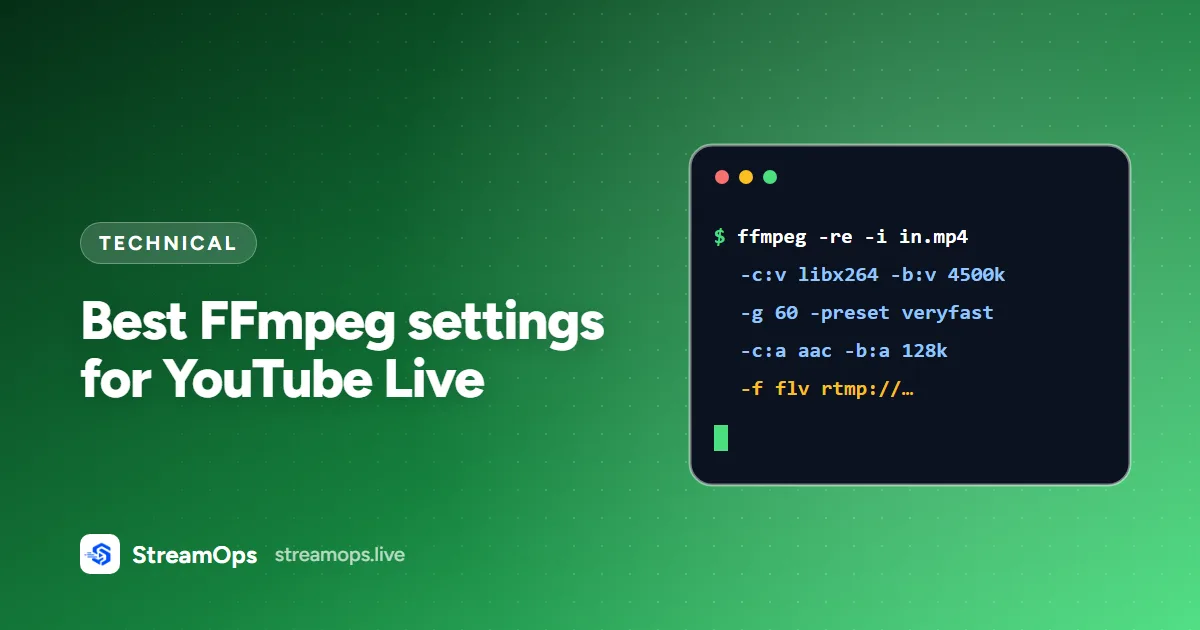
Software encoding (libx264), looping a single file to YouTube:
NVIDIA GPU encoding (NVENC):
Replace input.mp4 with a playlist concat file to loop multiple videos in sequence rather than a single file.
Frequently Asked Questions
What is the best bitrate for YouTube Live at 1080p?
For 1080p30, target 4,500–6,000 kbps video (CBR). For 1080p60, go up to 6,000–9,000 kbps. Keep total bitrate — video plus the separate audio stream — at roughly 60–70% of your tested sustained upload speed so you have headroom for jitter.
What GOP size does YouTube require for live streaming?
YouTube requires a keyframe at least every 2 seconds with closed GOPs. Set GOP size to your frame rate multiplied by 2 — for example -g 60 at 30fps, or -g 120 at 60fps.
Should I use CBR or VBR for YouTube Live?
Use CBR (Constant Bitrate) for live streaming. It keeps output bitrate flat and predictable, which avoids saturating your upload connection — VBR's quality-driven spikes can exceed your bandwidth and trigger dropped frames or a Poor Connection warning.
Do I need a GPU to stream to YouTube Live with FFmpeg?
No, software encoding with libx264 works fine on a modern CPU at 1080p30 using the veryfast or fast preset. A GPU encoder (NVENC, Quick Sync, or AMF) becomes worth it mainly when you're running several concurrent streams on one machine and want to free up CPU.
What audio settings does YouTube Live recommend?
AAC audio at 128–384 kbps, 44.1 or 48 kHz, stereo. For most content, 128–192 kbps AAC is indistinguishable from higher bitrates and leaves more of your bandwidth budget for video.
Conclusion
Most streaming problems trace back to a bitrate that doesn't match the upload connection, or a GOP size YouTube doesn't like — not to some exotic encoder flag. Match bitrate to your resolution and connection, keep GOP at 2 seconds, use CBR for predictability, and pick an encoder preset your hardware can sustain for hours at a time, not just minutes.
Seeing a Poor Connection warning even with these settings? See our Poor Connection troubleshooting guide. If you'd rather not hand-tune FFmpeg flags for every stream, StreamOps applies sensible encoding defaults automatically and exposes the ones worth adjusting through the dashboard.