In short
- "Poor Connection" measures how steadily data reaches YouTube, not your raw internet speed.
- Keep total bitrate at 60–70% of your tested upload speed, not the advertised one.
- Switch to CBR. VBR spikes can exceed your upload even when the average looks fine.
- With a GPU encoder such as NVENC, set the rate control to CBR explicitly (-rc cbr).
- The warning does not penalize the channel, but the dropped frames behind it hurt what viewers see.
Introduction
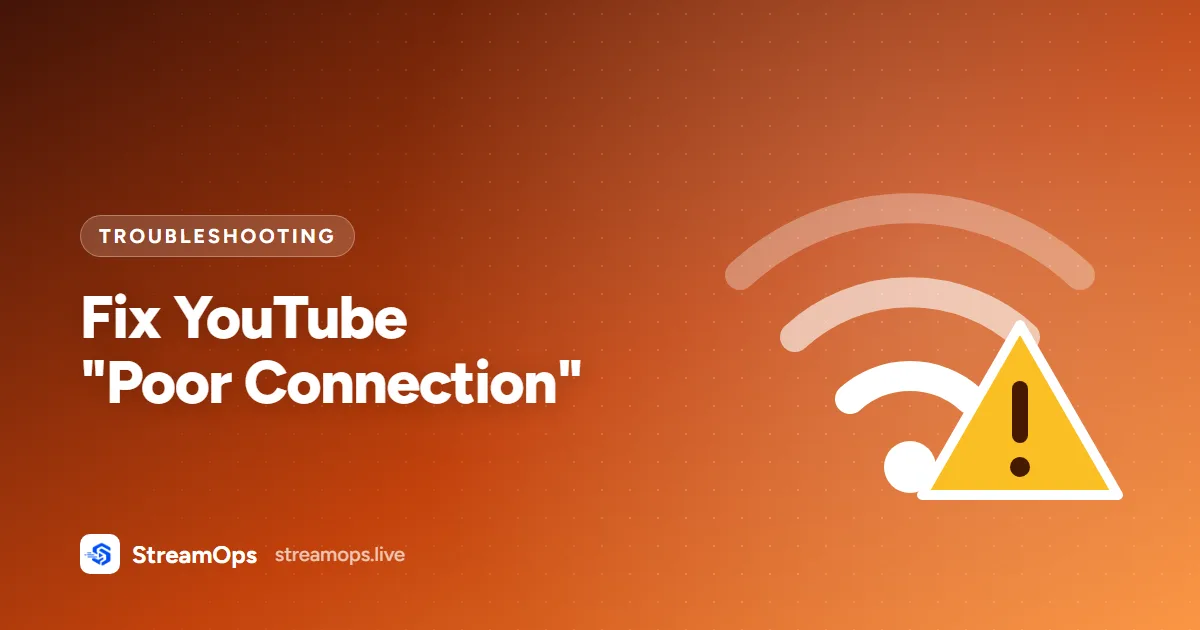
"Poor Connection" is one of the most common warnings in YouTube Studio's live dashboard, and one of the most misunderstood. Despite the name, it's rarely about your actual internet connection being down — usually the stream is still reaching YouTube fine, but something about how it's encoded is causing YouTube's ingest servers to flag it.
This guide breaks down what the warning actually measures, the five most common causes, and the exact fix for each.
What Poor Connection Means
YouTube's live dashboard shows "Poor Connection" when the data reaching its ingest server is arriving inconsistently — either the bitrate is fluctuating outside expected bounds, packets are arriving late or out of order, or frames are being dropped before they're even sent. It's a signal about the health of the incoming stream, not a judgment on your ISP.
It's not always your internet
A perfectly healthy connection will still trigger this warning if your encoder is configured to output bitrate spikes or an unstable frame rate. Check your encoding settings before you start troubleshooting your router.
Common Causes
Five issues account for the overwhelming majority of Poor Connection warnings:
Incorrect Bitrate
Streaming at a bitrate your connection can't sustain is the single most common cause. If your measured upload speed is 6 Mbps and you're pushing a 6,000 kbps video stream, you've left zero headroom for the separate audio stream, protocol overhead, or any network jitter — and YouTube will flag it almost immediately.
Fix: keep total bitrate (video + audio) at 60-70% of your tested upload speed. See our FFmpeg settings guide for resolution-specific bitrate targets.
Variable Bitrate Issues
VBR (Variable Bitrate) lets the encoder spend more data on complex scenes and less on simple ones. That's great for offline encodes, but for live streaming those spikes can momentarily exceed your actual upload capacity — even if the average bitrate looks fine on paper.
Fix: switch to CBR (Constant Bitrate) for live streaming so output stays flat and predictable regardless of scene content.
GPU Encoder Settings
Hardware encoders (NVENC, Quick Sync, AMF) sometimes default to a variable-quality rate control mode rather than a strict CBR mode, producing the same spiking behavior as software VBR.
Fix: explicitly set the rate control mode to CBR on your hardware encoder rather than relying on its default.
Internet Speed
Sometimes the connection genuinely is the problem — Wi-Fi congestion, a shared connection with other heavy users, or an ISP that throttles sustained upload traffic. Run a real upload speed test under the same conditions your stream runs (same time of day, same network), not just once when the network is idle.
Fix: use a wired ethernet connection instead of Wi-Fi, and leave at least 30% headroom between your bitrate and your tested sustained upload speed.
Dropped Frames
Dropped frames happen when your CPU or GPU can't encode fast enough to keep up with the video's frame rate — the encoder falls behind and starts skipping frames to catch up, which YouTube reads as an unstable stream.
Fix: use a faster encoder preset (e.g. veryfast instead of medium), lower resolution or frame rate, or move to hardware (GPU) encoding to take the load off the CPU.
Recommended Fixes
Prevent Future Problems
- Test your actual sustained upload speed, not just a quick speed test — run it for several minutes.
- Always use CBR for live, and set maxrate/bufsize to match your target bitrate.
- Monitor the live dashboard for the first 15-30 minutes after any settings change.
- Leave real headroom — don't stream at the exact ceiling of your connection.
- If running unattended, use a tool that alerts you on stream health issues instead of finding out days later.
Frequently Asked Questions
Why does YouTube say "Poor Connection" if my internet is fine?
Because the warning measures how consistently data arrives at YouTube's ingest server, not your raw connection speed. A healthy connection will still trigger it if your encoder outputs bitrate spikes, an unstable frame rate, or drops frames under CPU load — check your encoding settings before troubleshooting your router.
What bitrate fixes YouTube Live Poor Connection?
Keep total bitrate (video plus audio) at 60-70% of your tested sustained upload speed, not your advertised speed. For 1080p30 that's typically 4,500–6,000 kbps video if your upload comfortably clears 8-10 Mbps.
Does switching to CBR fix Poor Connection warnings?
In most cases, yes. VBR lets bitrate spike on complex scenes, which can momentarily exceed your upload capacity even when the average looks fine. CBR keeps output flat and predictable, which is what YouTube's ingest servers expect from a stable live feed.
How do I fix Poor Connection when using a GPU encoder like NVENC?
Hardware encoders often default to a variable-quality rate control mode instead of strict CBR, producing the same spiking behavior as software VBR. Explicitly set -rc cbr on the encoder rather than relying on its default.
Will a Poor Connection warning get my channel penalized?
The warning itself doesn't penalize your channel — it's informational. But the underlying cause (dropped frames, buffering) degrades what viewers actually see, and a stream that repeatedly disconnects can interrupt monetization and audience retention, so it's worth fixing rather than ignoring.
Conclusion
"Poor Connection" is almost always an encoding configuration issue wearing a network-sounding name. Fix bitrate, force CBR, and make sure your hardware can keep up with your chosen preset, and the warning disappears in the overwhelming majority of cases. For the full set of resolution-specific bitrate targets, see our FFmpeg settings guide.
StreamOps applies CBR and safe bitrate/GOP defaults automatically, and surfaces stream health alerts in the dashboard so you catch these issues before a viewer does.