In short
- StreamOps runs an MCP server at
https://mcp.streamops.live/mcpthat AI assistants can connect to. - It is read-only: 19 tools covering streams, logs, playlists, videos, schedules, analytics, YouTube and notifications. Nothing can be started, stopped or changed.
- Claude, ChatGPT and Gemini connect by signing in to StreamOps — no key. Claude Code, Claude Desktop and Gemini CLI use an API key.
- Stream keys are always redacted, and access is limited to your own team.
- Included in the Pro plan and the 7-day trial.
Introduction
Checking on a 24/7 channel usually means opening the dashboard, clicking into each stream, reading the log and then switching to YouTube Studio for the numbers. If you already use an AI assistant every day, it is quicker to ask it: "Did anything crash overnight?"
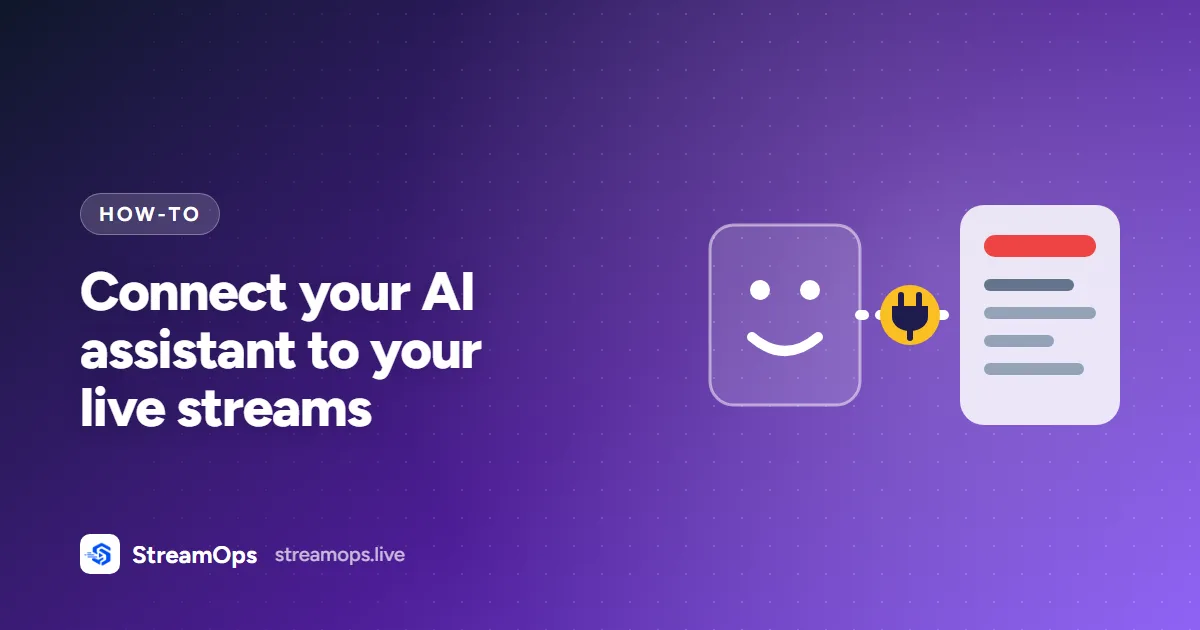
For that to work, the assistant needs a way to read your StreamOps account. That is what the StreamOps MCP server is for. This guide explains what it gives an assistant access to, how to connect each kind of assistant, and what keeps the connection safe.
What Is an MCP Server?
MCP (Model Context Protocol) is an open standard for connecting AI assistants to outside systems. An MCP server publishes a list of tools — small, named operations such as list_streams — each with a description of what it does. When you ask a question, the assistant decides which tools would help, calls them, and writes its answer from what comes back.
Because it is a standard, one server works with every assistant that supports MCP. You do not need a separate plugin for Claude, another for ChatGPT and another for Gemini.
What Your Assistant Can See
The StreamOps MCP server has 19 tools in six groups:
| Group | What the assistant can read | Example question |
|---|---|---|
| Streams | Every stream and its status, one stream's live status, recent log lines, each stream's mode, encoding tier and destinations, and a capacity estimate for your upload bandwidth | Why does my lofi stream keep restarting? |
| Playlists & videos | Each stream's playlist (including any scheduled takeover), the video library, and one video's resolution, duration, bitrate and normalized versions | Which videos haven't been normalized yet? |
| Scheduler | Upcoming and past schedules, and the channel profile and instructions the AI scheduler follows | What's scheduled for this weekend? |
| Analytics | The analytics summary, subscriber or view growth over a date range, stream performance, and one stream's analytics | How many subscribers did I gain last month? |
| YouTube | Details and live health for a YouTube broadcast, and queued title, description and thumbnail updates | Is YouTube reporting any ingest problems? |
| Notifications | Recent alerts — crashes, failed starts, crash loops | Did any stream crash overnight? |
The full list, with each tool's inputs, is in the dashboard under Settings → MCP Servers → See all 19 tools. It is the same data the dashboard shows you; the assistant just reads it for you and puts it together.
Why It Is Read-Only
An assistant can misread a request. "Clear up the old streams" should never end with a live stream being stopped. So every tool only reads: the assistant can tell you a stream is down, show you the log lines and explain what they mean, but restarting it is still a click in the dashboard.
Reading is where most of the time goes
Sign-In or API Key
There are two ways to connect, depending on what you are connecting:
| Sign in with StreamOps | API key | |
|---|---|---|
| For | Claude, ChatGPT and Gemini (web, desktop and mobile apps) | Claude Code, Claude Desktop config, Gemini CLI and your own scripts |
| Setup | Paste the server URL, sign in, choose Allow access | Create a key, paste a config snippet |
| Secret to store | None | The key, sent in the X-Api-Key header |
| Turn off | Disconnect the app in Connected apps | Revoke the key |
Both are managed in one place: Settings → MCP Servers in the StreamOps dashboard.
Connect Claude, ChatGPT or Gemini
The server URL is:
In the StreamOps dashboard, open Settings → MCP Servers and copy the server URL: https://mcp.streamops.live/mcp
In Claude: Customize → Connectors → + Add → Add custom connector. In ChatGPT: turn on Developer mode in Settings, then create a new app (connector). Paste the URL and choose OAuth / sign-in.
The assistant opens a StreamOps sign-in page. Sign in with the account that owns, or is a member of, the team you want to connect. If you are already signed in in that browser, this step is skipped.
StreamOps shows which assistant is asking, what it will be able to view, and which account you are signed in as. Choose Allow access and you are sent back to the assistant.
Try "Did any of my streams crash overnight?" The assistant calls StreamOps and answers from your real data.
| Assistant | Where to add it | Good to know |
|---|---|---|
| Claude | Customize → Connectors → + Add → Add custom connector | On the Free plan you can add one custom connector. Turn it on per chat from the + menu → Connectors. |
| ChatGPT | Settings → turn on Developer mode, then create a new app (connector) | Custom MCP connectors need Developer mode, which is not on every ChatGPT plan. Pick it from the + menu in a chat. |
| Gemini | Wherever your Gemini app lists custom MCP servers or connectors | Gemini CLI is covered below with an API key. |
These menus are from the assistants' own help pages in October 2026, and they change as the apps are updated.
Behind the sign-in is standard OAuth: the assistant never sees your StreamOps password, only a token for that one connection, which you can withdraw at any time.
Connect Claude Code, Claude Desktop or Gemini CLI
Developer tools connect with an API key. Create one under Settings → MCP Servers → API keys. The key is shown once, and the setup guide on that page fills it into the snippets below so you can copy them directly.
Claude Code — one command:
Claude Desktop — add this to the mcpServers section of its config file. It uses mcp-remote (run through npx, so Node.js must be installed) to reach the remote server:
The key goes in env and the header has no space after the colon on purpose: on Windows, spaces inside these arguments get split apart.
Gemini CLI — add this to its settings.json:
Things to Ask
Once connected, talk to it the way you would to someone looking after the channel:
- Morning check: "Did any stream crash or restart overnight? If so, what do the logs say?"
- Diagnosing: "Stream 3 keeps restarting. Read its last 200 log lines and tell me the likely cause."
- Playlist: "What is each stream playing, and is any playlist under two hours long?"
- Library: "List videos that aren't 1080p or haven't been normalized."
- Schedule: "What's scheduled for this weekend, and does anything overlap?"
- Growth: "Compare subscriber growth this month with last month."
- Capacity: "How many HD streams can my upload carry before I add another one?"
- YouTube: "Is YouTube reporting any health problems on my current broadcast?"
The assistant combines tools on its own — for "why did it crash?" it will typically check notifications, then the stream's status, then its log. For log reading in particular, see why your 24/7 stream keeps ending for what the common causes look like.
Security & Privacy
- Scoped to your team. Access comes from the account that signed in or created the key. No tool accepts an account or team id, so an assistant cannot be pointed at anyone else's data.
- Stream keys are redacted. They are removed from stream configuration and from log lines before anything is returned.
- Team members sign in as themselves. An invited team member who connects an assistant uses their own login, so the connection belongs to them and can be withdrawn without touching anyone else's.
- Rate-limited. 60 tool calls per minute per team.
- Easy to withdraw. Connected apps lists every assistant you have allowed; disconnect any of them, or revoke a key, from Settings → MCP Servers. A disconnected app can keep working for up to 15 minutes, until its current access runs out, and has to ask for your approval again to reconnect.
What the assistant provider sees
Troubleshooting
| Problem | Likely cause | Fix |
|---|---|---|
| Access refused with a plan or upgrade message | MCP access is a Pro feature | Upgrade to Pro, or try it during the 7-day trial |
| Developer tool returns 401 | Key mistyped, revoked or expired | Create a new key and paste the snippet again |
| "Too many requests" | More than 60 calls in a minute | Wait a minute; ask for fewer streams at once |
| Logs or video library come back empty | The StreamOps service on your PC or server is offline | Check the machine is on and the service is running |
| The assistant doesn't use StreamOps | The connector is not turned on for this chat | Enable it in the chat, or mention StreamOps by name in your question |
Common Mistakes
Frequently Asked Questions
What is an MCP server?
MCP (Model Context Protocol) is an open standard for connecting AI assistants to outside data and tools. An MCP server lists the tools it offers; the assistant decides when to call them while it answers you.
Which AI assistants work with StreamOps?
Any assistant or tool that supports remote MCP servers. The setup guide in StreamOps covers Claude, ChatGPT and Gemini (sign in, no key) and Claude Code, Claude Desktop and Gemini CLI (API key).
Can the assistant start, stop or change my streams?
No. All 19 tools are read-only. An assistant can view streams, logs, playlists, videos, schedules, analytics, YouTube broadcast health and notifications, but cannot change anything.
Which plan includes MCP access?
The Pro plan. The 7-day trial is Pro-level, so you can try it during the trial.
Do I need an API key?
Not for Claude, ChatGPT or Gemini — you sign in with StreamOps instead. Developer tools such as Claude Code, Claude Desktop and Gemini CLI use an API key, created in Settings → MCP Servers.
Can the assistant see my stream keys?
No. Stream keys are redacted from stream configuration and from logs before anything is returned to the assistant.
Can it see other people's streams?
No. Access always comes from the account that signed in or created the key, and is limited to that team. No tool accepts an account or team id, so there is nothing to point at someone else's data.
How do I disconnect an assistant?
Open Settings → MCP Servers in the StreamOps dashboard. Connected apps lists every assistant you have allowed, with a button to disconnect each one. API keys are revoked from the same page.
Is there a usage limit?
Yes: 60 tool calls per minute per team. One question can use several calls, but normal conversation stays well below the limit.
Conclusion
Connecting an assistant takes a minute: paste the server URL, sign in, allow access. After that, checking on your channel can be a question instead of a tour of the dashboard — and because every tool is read-only and scoped to your team, you can do it without worrying about what the assistant might change.
Reference details, including the server URL and developer setup, are also in the MCP Server docs.